
LTC & MTC Control
Callie Grams can trigger clips from an external timecode source. This is useful for synchronising sound effects, music cues, or stings with a show clock, video server, or lighting console.
Timecode Source Setup
Section titled “Timecode Source Setup”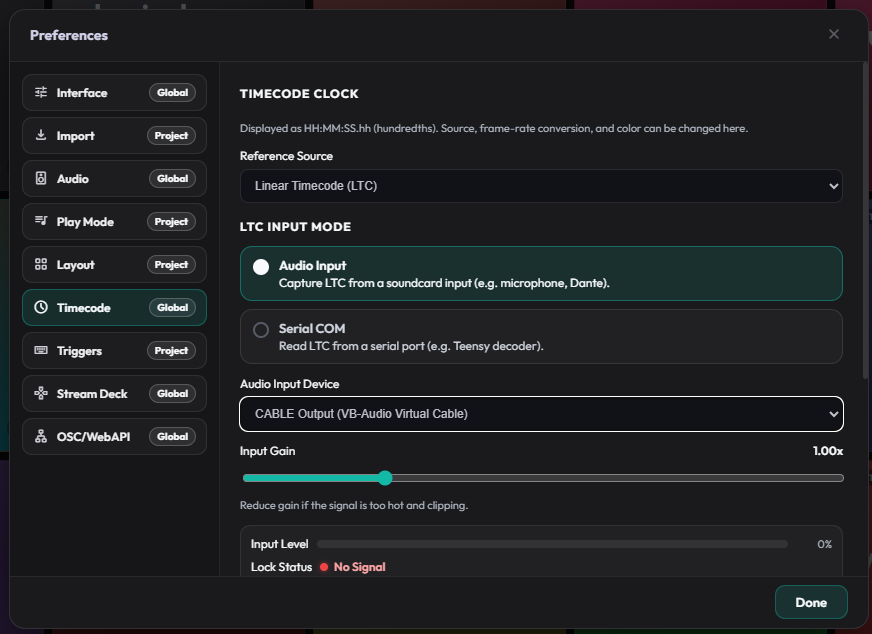
Configure the source in Preferences → Timecode:
- Reference Source — choose System Clock, MIDI Timecode (MTC), or Linear Timecode (LTC).
- Frame Rate — match your external source (for example 24, 25, 29.97, or 30 fps).
- Offset — shift the incoming timecode in hundredths of a second.
- Fallback to system clock — use the computer clock if the external source disappears.
- Clock Color — change the color of the system timecode display in the header.
LTC Audio Input
Section titled “LTC Audio Input”For LTC:
- Connect an LTC source to an audio input on your computer (or to a Dante channel).
- In Preferences → Timecode, set Reference Source to Linear Timecode (LTC).
- Under LTC Input Mode, choose Audio Input.
- Select the input device.
- Adjust Input Gain if the meter is too low or clipping.
Callie Grams shows the input level and lock status while LTC is selected.
LTC Serial Input
Section titled “LTC Serial Input”If you are using a serial LTC decoder (for example a Fetch Hachi):
- In Preferences → Timecode, set Reference Source to Linear Timecode (LTC).
- Under LTC Input Mode, choose Serial COM.
- Select the serial port.
MTC Input
Section titled “MTC Input”For MTC:
- Connect a MIDI device that generates MTC.
- In Preferences → Timecode, set Reference Source to MIDI Timecode (MTC).
- Select the MIDI port.
System Clock
Section titled “System Clock”With System Clock selected, Callie Grams uses the computer’s local time of day. This is useful for scheduled playback without external hardware.
Timecode Triggers
Section titled “Timecode Triggers”Set per-clip triggers in Clip Settings → Triggers:
- Click + Add Timecode Trigger.
- Set the Time at which the clip should fire.
- Optionally set a Repeat interval and an Until time.
- Enable or disable the trigger with the checkbox.
Each trigger fires the clip at the specified time of day. Leave Until blank to repeat indefinitely.
Generating LTC
Section titled “Generating LTC”Callie Grams can also send LTC, for example to drive lighting cues from a clip.
- Open Preferences → Timecode and tick Enable LTC generator.
- Device-per-output type: choose an Output Device. Use a device that is not carrying clip audio; the LTC is sent to every channel of it.
- Multi-channel/ASIO type: choose a Channel Pair on the Multi-channel Device/ASIO Device selected above (Preferences → Audio). LTC shares that device on its own pair, the same way cart outputs A–L do — pick a pair no output is already using.
- Pick a Frame Rate (24, 25 or 30 fps) and a Pre-roll.
- In a clip’s settings, open the LTC Out tab (it only appears while the generator is enabled) and enter a Start Timecode (
HH:MM:SS:FF). Leave it blank for a clip that should not generate LTC.
When you fire a clip with a Start Timecode, the LTC counts up from Start Timecode minus Pre-roll, so the desk can lock, and reaches the Start Timecode exactly when the clip’s audio begins. The cart strip shows the generated timecode, and a PRE-ROLL countdown while the clip is being held back. When the clip ends or is stopped, the output returns to 00:00:00:00.
Notes:
- If the Start Timecode is shorter than the Pre-roll (for example a start of
00:00:01:00with a 3 s pre-roll), the output holds00:00:00:00and starts counting late enough to reach the Start Timecode when the clip begins. - By default the LTC runs on while a clip plays, even if the clip loops. Tick LTC follows loops on the clip’s LTC Out tab to make the timecode follow the clip’s position instead: it jumps back to the loop start on every pass (and forward over skipped sections). The timecode at the loop start is the Start Timecode plus the loop start’s position in the clip. Pre-roll still happens once, before the first pass.
- If two clips with Start Timecodes overlap, the most recently fired one drives the generator.
- A stored Start Timecode that is not valid at the current frame rate (for example frame 29 after switching to 24 fps) is ignored until it is edited; the clip still plays.
- Match the frame rate exactly to your source; mismatched rates cause drift.
- Use the offset to compensate for processing delay.
- For LTC audio input, make sure the input is not muted in the OS and is reaching Callie Grams at a healthy level.